

0.3 Introduction to NCAR Supercomputing#
Tutorials at the 2026 paleoCAMP | June 15–June 29, 2026
Jiang Zhu
jiangzhu@ucar.edu
Climate & Global Dynamics Laboratory
NSF National Center for Atmospheric Research
Learning Objectives#
By the end of this notebook, you will be able to:
Identify the main NSF NCAR resources used in this tutorial sequence
Log in to Derecho from a terminal using
sshSign in to NSF NCAR JupyterHub with DUO authentication
Launch a Python notebook server on Casper using the paleoCAMP project account
Time to learn: 10 minutes
NSF NCAR Advanced Research Computing#
The NSF NCAR Computational and Information Systems Laboratory (CISL) provides several resources that you will use in this tutorial sequence:
Derecho for high-performance computing
JupyterHub for interactive analysis
Campaign Storage and GDEX for data storage and access
Before you can use these resources, make sure you have:
an active NSF NCAR account
a CIT password
Duo two-factor authentication set up (Duo Mobile app or a landline phone)
If you do not yet have an account, let Jiang know.
If you do not have a CIT password, call 303-497-2000 or email cislhelp@ucar.edu.
For Duo setup help, see Authenticating with DUO.
For this tutorial, the paleoCAMP project number is UAZN0052. You will need it when launching JupyterHub. This project expires on June 30, 2026.
For longer-term access after paleoCAMP, see allocation opportunities, such as the “Data Analysis Allocation (University).”
Connect to Derecho via Terminal#
Most of the users use terminal to remotely access the NCAR HPC and run CESM there.
A terminal is a text-based interface used to control a Unix computer. It is widely considered the most efficient method to accomplish a given task or maintenance operation.
Launch a terminal from your system (Mac or PC)#
If on a Mac, open a terminal#
Go to the search spotlight (magnifying glass icon) and type in terminal.
Terminalis automatically built into the macOS and clicking on it will open a terminal window.iTermis a third-party software that was installed by the user on their laptop and is another option for opening a terminal.

Figure: terminal mac
If on a PC, open a terminal#
Go to the start menu and type in terminal.
Terminalwill open a terminal window.Command Promptwill open a terminal window.
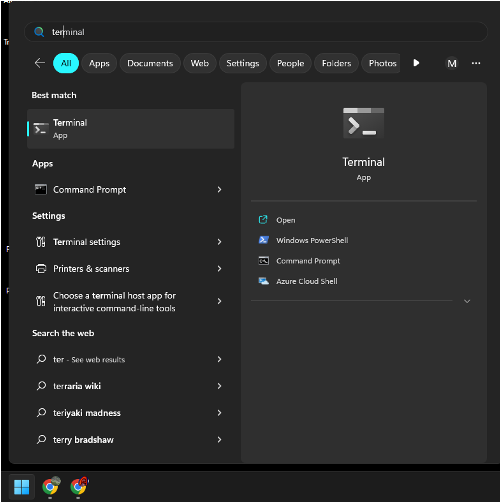
Figure: terminal PC
Log in to Derecho at the NSF NCAR using ssh#
Run:
ssh -XY YOUR_USERNAME@derecho.hpc.ucar.edu
Then enter your CIT password and complete Duo authentication.
sshstarts a secure remote login session-XYenables X11 forwarding for graphical applications when neededReplace
YOUR_USERNAMEwith your NSF NCAR username
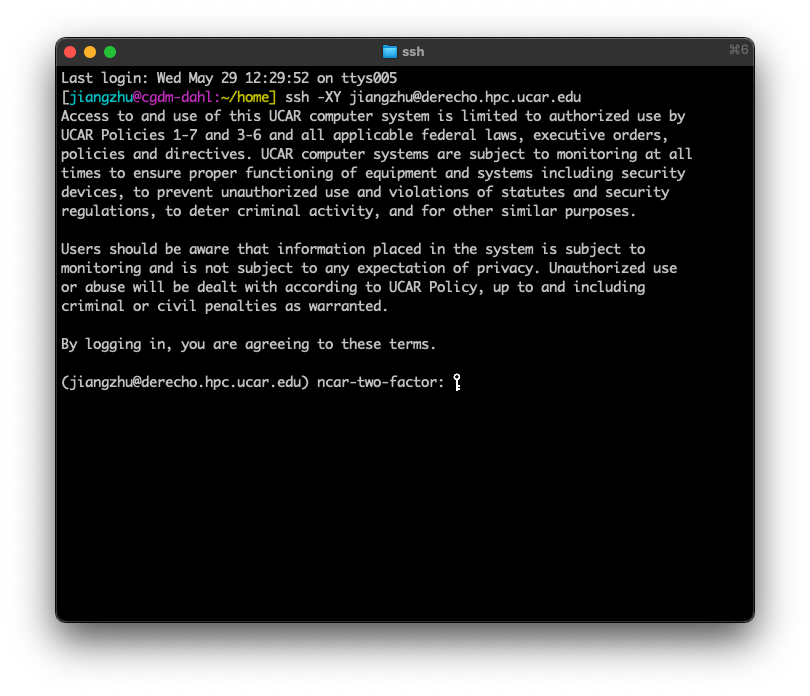
Figure: terminal SSH
Use the NCAR JupyterHub#
Go to NCAR JupyterHub.
Sign in#
Enter:
your
usernameyour
password,passcode
Here:
passwordis your CIT passwordpasscodeis the 6-digit code from Duothe comma is required between them
For later logins, you may be able to use your username and password with a Duo push, but the password,passcode format is useful when many users are logging in at once.
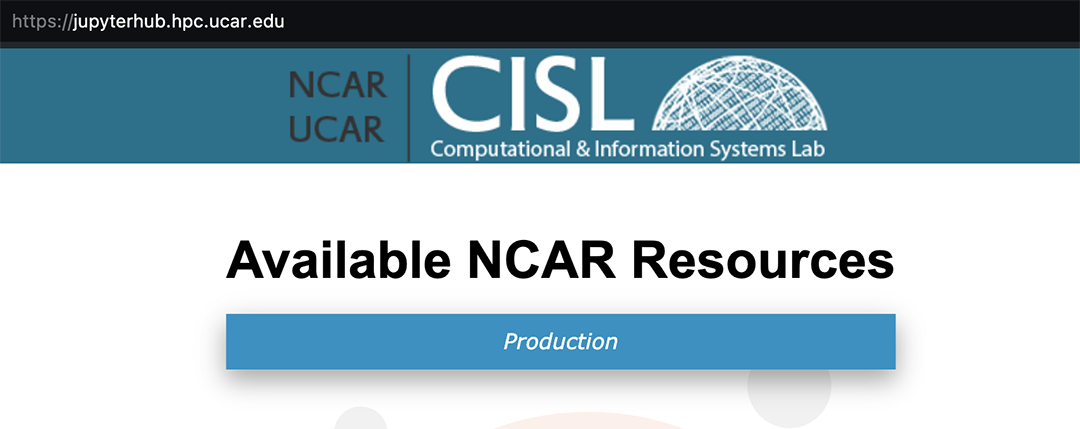
Figure: JupyterHub login0
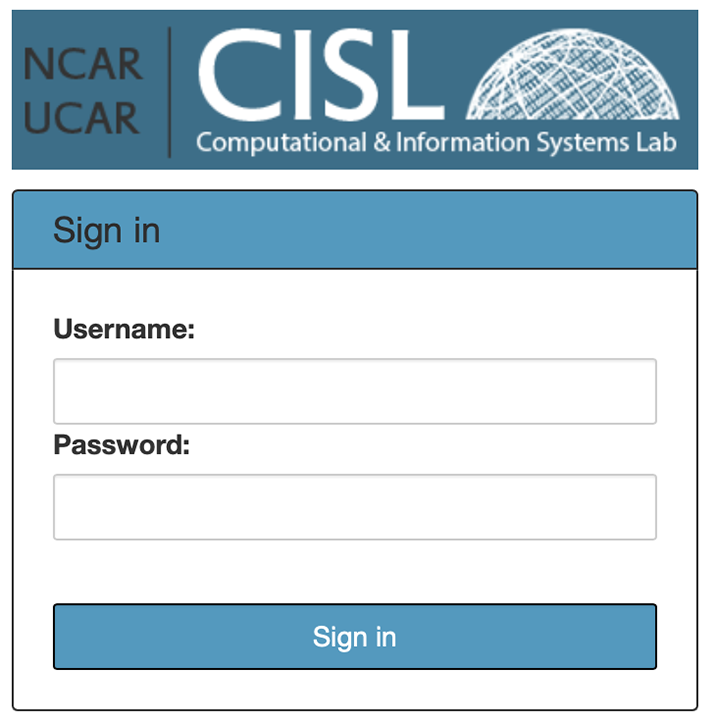
Figure: JupyterHub login1
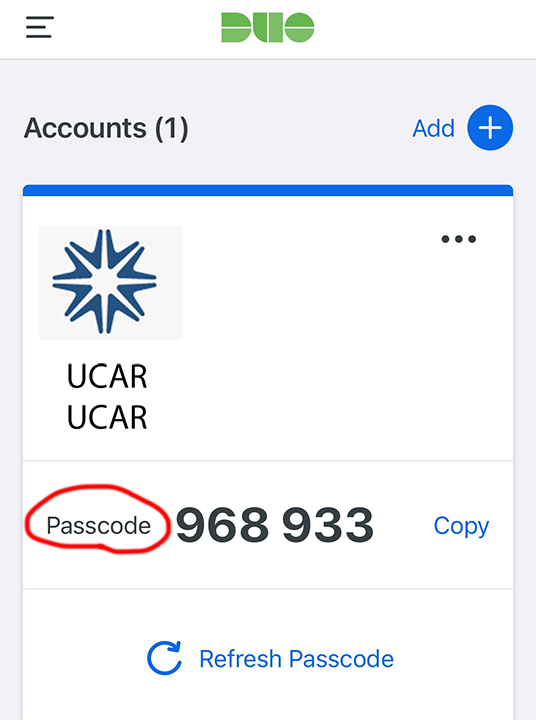
Figure: DUO passcode
Start a notebook server#
From the dropdown menus, select:
Casper PBS Batchunder Resource Selectioncasperunder Queue or ReservationUAZN0052under Project Account06:00:00under Wall Time
These settings are sufficient for the tutorial notebooks and help avoid requesting more resources than you need.
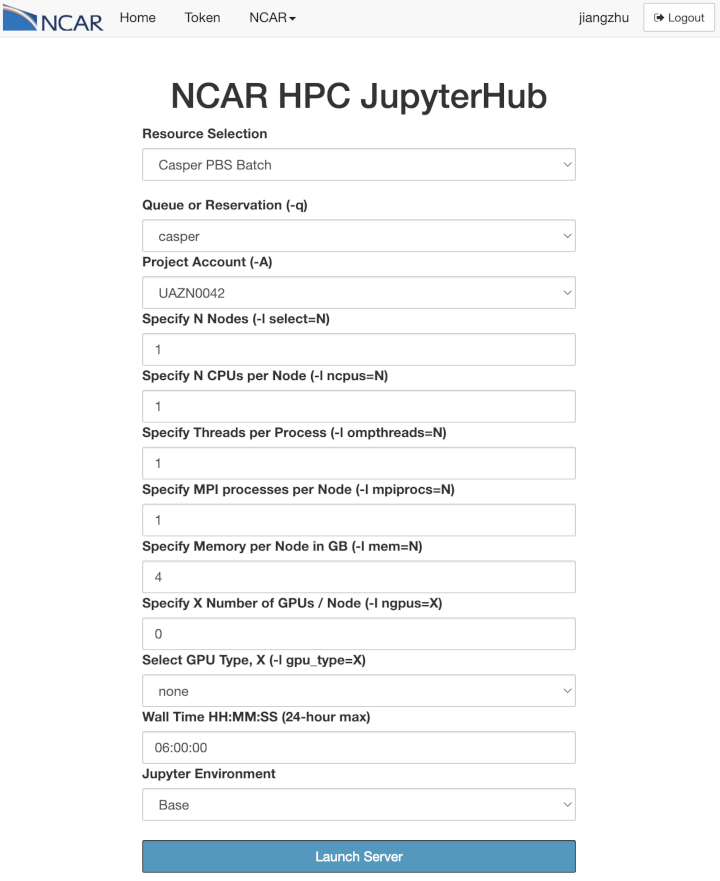
Figure: Jupyterhub Derecho
Launch a Notebook with Python#
Select
NPL 2026aas the kernel from the top-right corner, or use another recent NPL version.NPL (NCAR Python Library) usually includes the needed Python packages, so extra installation is typically unnecessary.
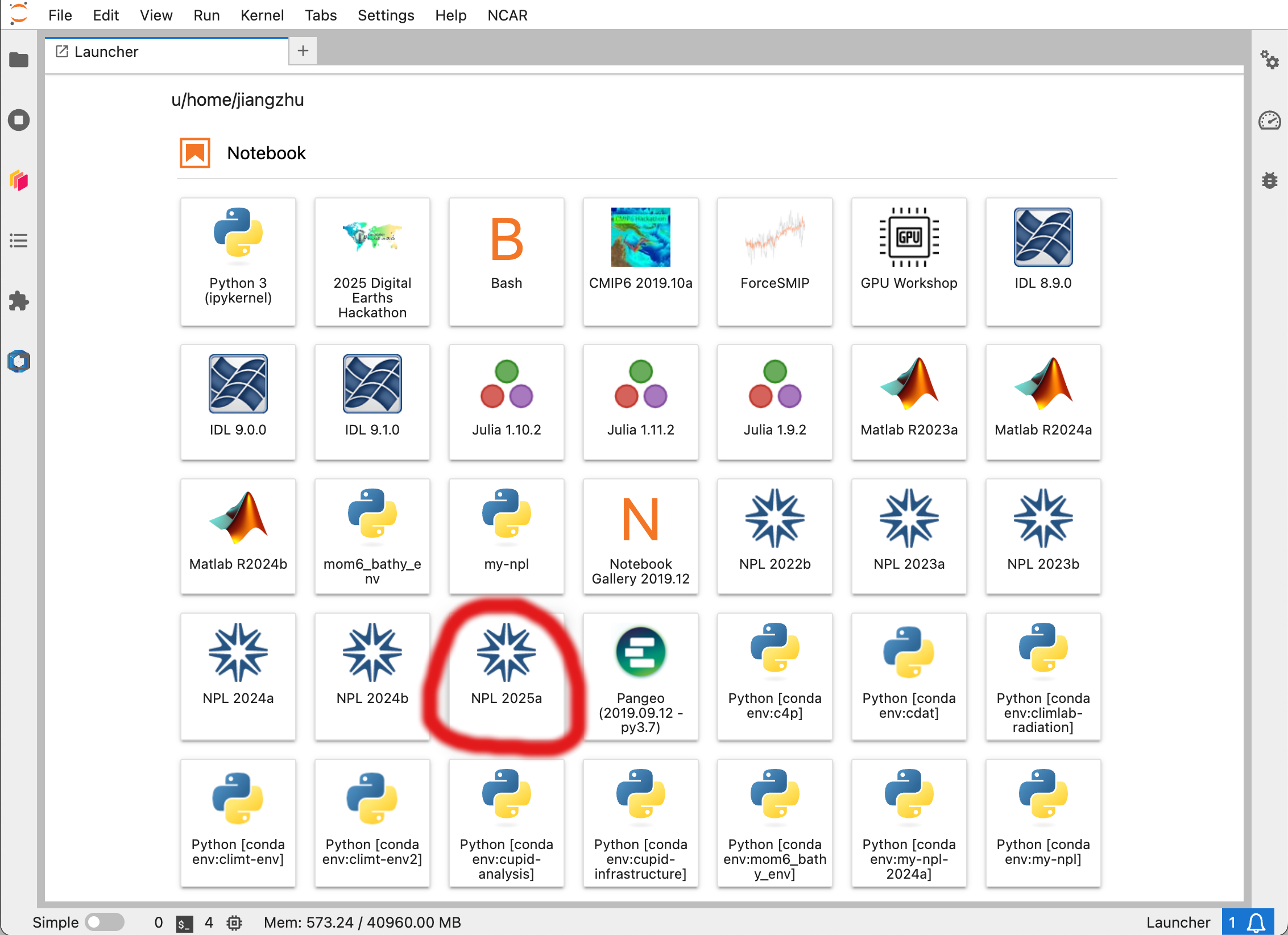
Figure: Launch notebook
Common issues#
Login fails immediately: Check that your CIT password is correct and that DUO is set up.
password,passcodedoes not work: Make sure the comma is included and the DUO code is current.Server takes a long time to start: Wait a minute or two; batch-backed launches can take time.
Wrong project account: Confirm that
UAZN0052is selected.Still stuck: ask for help!
How to log out of JupyterHub?#
Click the
Filetab and find and clickLog Outat the bottom
More learning resources#
Derecho New user orientation
New user training: YouTube Recording and presentation slides