
NSF NCAR Advanced Research Computing#
The NSF NCAR Computational and Information Systems Lab (CISL) provides resources for high performance computing, data anslysis and visualization, and data storage and archives.
You need an account in order to access these resources. Let Jiang know if you haven’t got your account.
To login, please set up you CIT password and the DUO two-factor authenticationthe (Duo Mobile app or a landline phone).
See Authenticating with Duo for details.
Call 303-497-2400 or email
cislhelp@ucar.eduif you don’t have a CIT password.
The project number for paleoCAMP is
UAZN0035, which will expire on August 31, 2024.See here for options for a long-term access, such as the “Data Anaysis Allocation (University)”.
Use Derecho to run CESM via Terminal (Day 3 Afternoon Session 1)#
A terminal is a text-based interface used to control a Unix computer. It is widely considered the most efficient method to accomplish a given task or maintenance operation.
Most of the users use terminal to remotely access the NCAR HPC and run CESM there.
Two ways to launch a terminal
1. NCAR JupyterHub (choosing Derecho when login)
2. your system (Mac or PC; most commonly used)
Use method 1 if you have never used Unix (incl. its text editor such as vi and emacs) before.
Use method 2 if you are comfortable with or want to learn text editing in Unix.
Option 1. Launch a terminal from NCAR JupyterHub#
Go to NCAR JupyterHub: https://jupyterhub.hpc.ucar.edu/
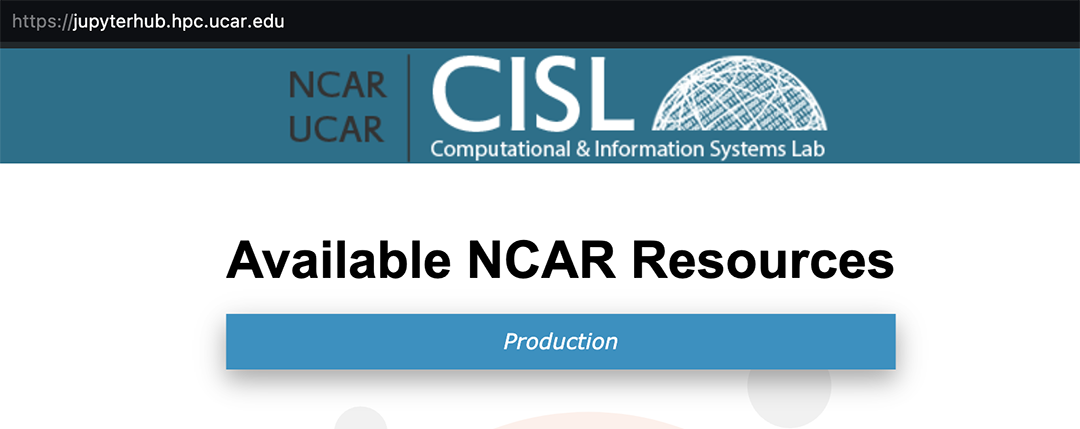
Figure: JupyterHub login
Sign in with your username and password, and approve the DUO push#
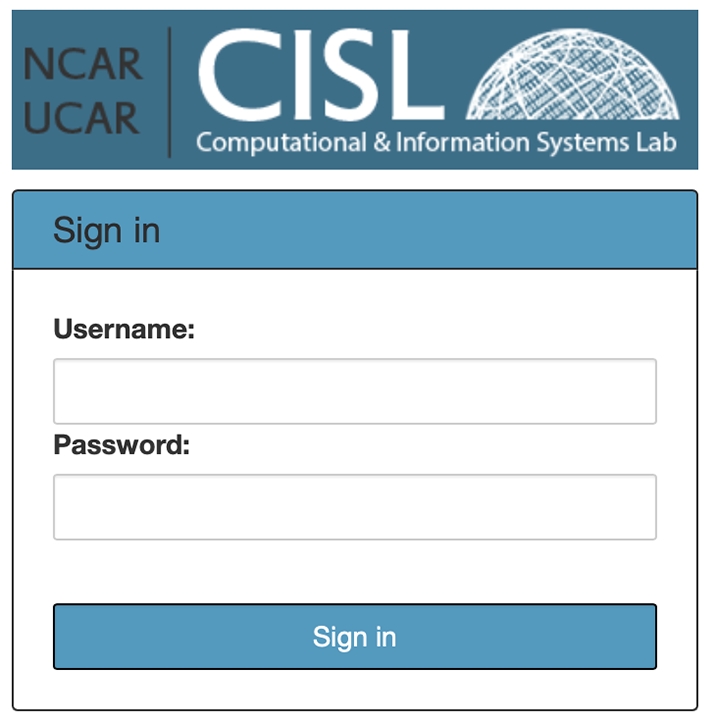
Figure: JupyterHub login
Start the JupyterHub with the Derecho node#
From the dropdown menu, select
Derechounder Resource Selectiondevelopunder Queue or Reservation (to save resources)UAZN0035under Project Account06:00:00under Wall Time
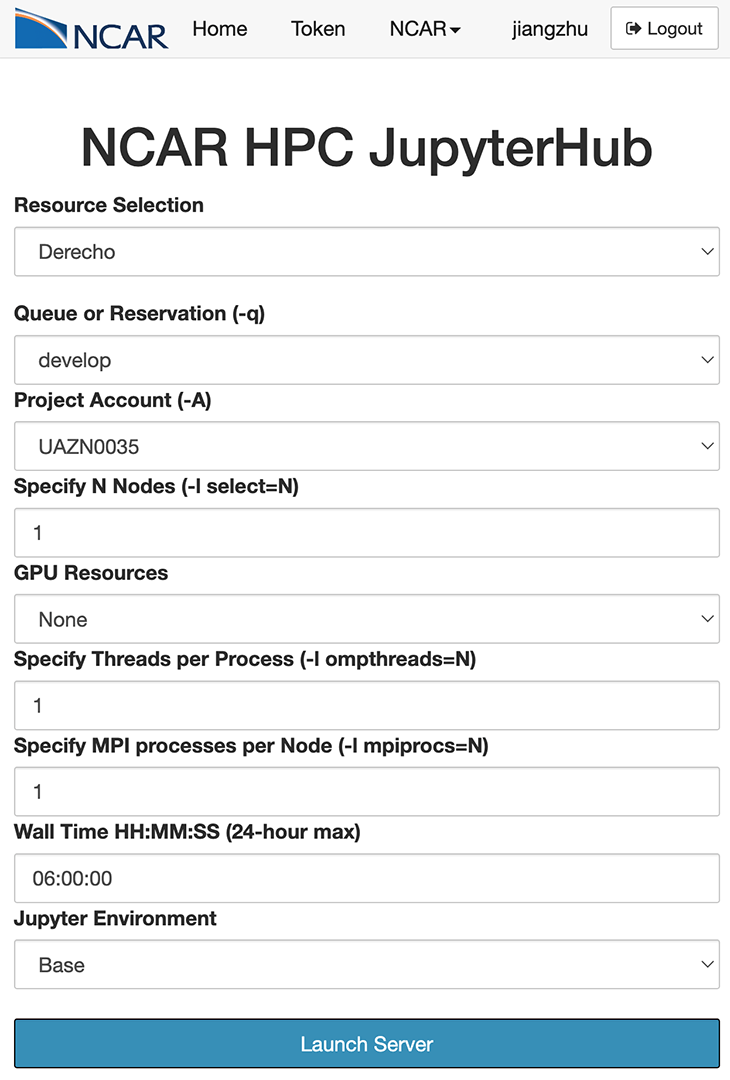
Figure: Jupyterhub Derecho
Launch a terminal within the JupyterHub
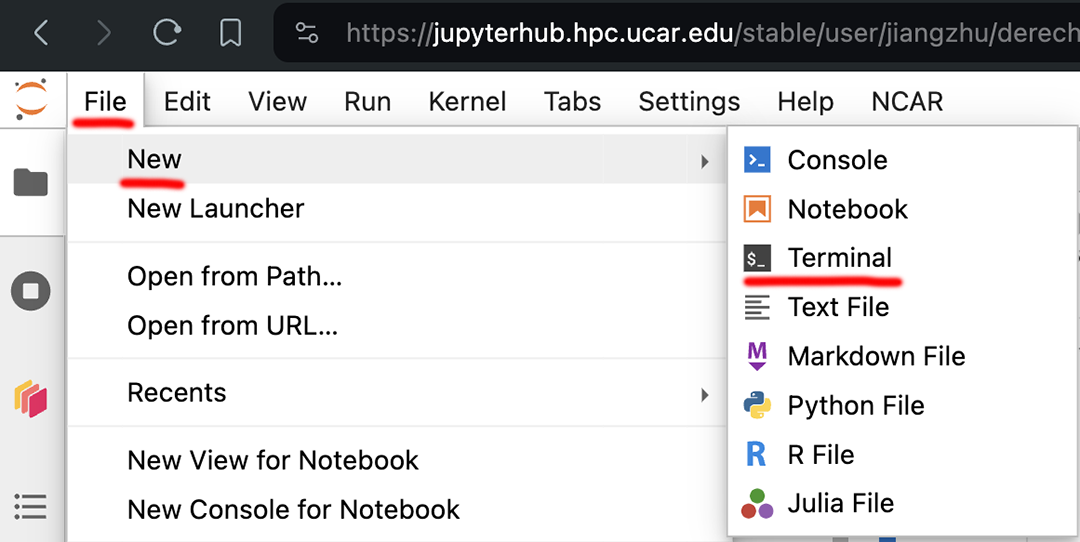
Figure: Terminal Derecho
Note: some terminal functions (e.g. X11 forwarding) do not work in a terminal opened through JupyterHub.
Option 2. Launch a terminal from your system#
If on a Mac, open a terminal#
Go to the search spotlight (magnifying glass icon) and type in terminal.
Terminalis automatically built into the MacOS and clicking on it will open a terminal window.iTermis software that was installed by the user on their laptop and is another option for opening a terminal.

Figure: terminal mac
If on a PC, open a terminal#
Go to the start menu and type in terminal.
Terminalwill open a terminal window.Command Promptwill open a terminal window.
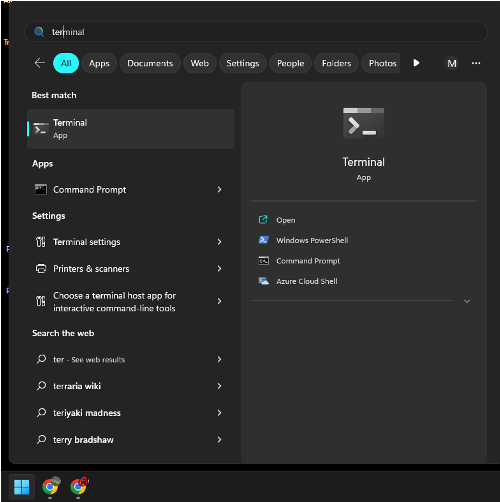
Figure: terminal PC
Login into the HPC at the NSF NCAR using ssh#
ssh -XY YOUR_USERNAME@derecho.hpc.ucar.edu
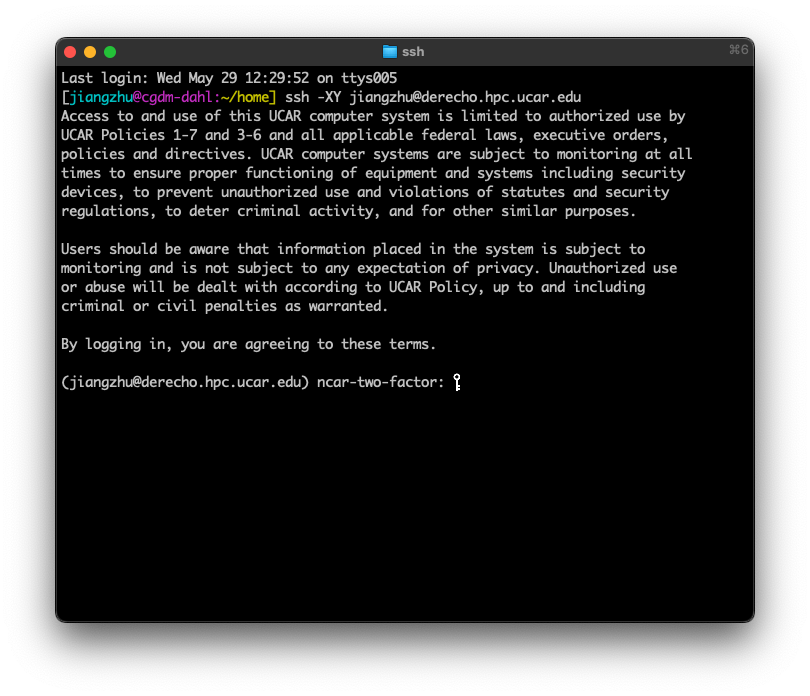
Figure: terminal SSH
The -XY option enables the X11 forwarding.
X11 forwarding is an SSH protocol that enables users to run graphical applications on a remote server and interact with them using their local display and I/O devices.
[NEW] Avoid jamming DUO-JupyterHub when multiple users login at the same time#
Go to NCAR JupyterHub: https://jupyterhub.hpc.ucar.edu/
Type in your
usernameType in your
password,Passcodepasswordis the CIT password you set up with CISLPasscodeis the six digits on your DUO app (see the image below)
No DUO push involved
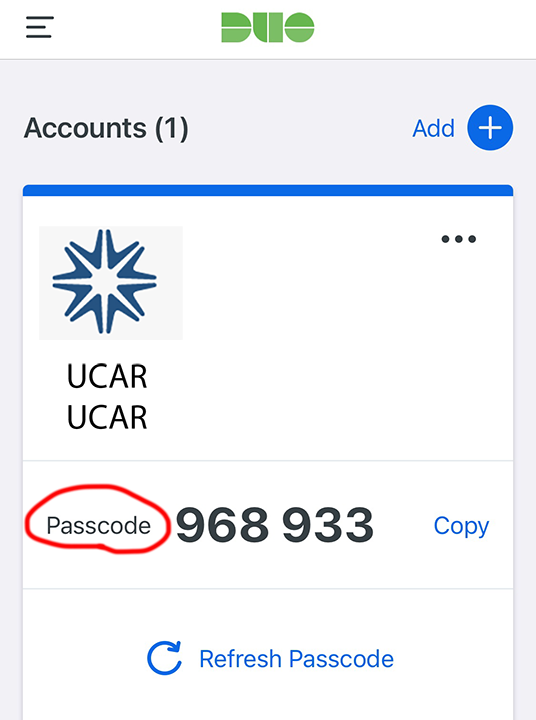
Figure: DUO Passcode
How to log out the JupyterHub?#
Click the
Filetab and find and clickLog Outat the bottom
More learning resources#
Derecho New user orientation
New user training: YouTube Recording and presentation slides